悬停就能识别窗口,单击即截下。标注、美化、拼接,几秒钟得到一张可以直接分享的成品图,全程只在你的电脑上完成。Hover to find a window, click to capture it. Annotate, beautify and stitch, and in seconds you have an image that is ready to share. Everything happens on your own computer.
macOS 12 及以上(Apple 芯片与 Intel)· Windows 10 / 11macOS 12 or later (Apple silicon & Intel) · Windows 10 / 11
QuickShot 2880 × 1800
截图Capture
悬停识别窗口, 单击即截。Hover a window. Click. Done.
屏幕保持原样,不变暗也不变色。QuickShot 只为鼠标下的窗口描出一圈彩虹轮廓,松手就进入编辑器。Your screen stays exactly as it is, with no dimming and no tint. QuickShot simply rings the window under your pointer in a spectrum outline, and lets go straight into the editor.
QuickShot文件File编辑Edit窗口Window
9:41
Northwind
季度概览Quarterly overview
总收入Revenue¥1.28M▲ 12.4%
订单Orders8,419▼ 3.1%
转化率Conversion4.82%▲ 0.6
Draft
发布清单Launch list
周五之前完成以下几项:Before Friday:
截取新版仪表盘Capture the new dashboard
标出转化率的变化Call out the conversion jump
给客户名称打码Blur customer names
拼成一张发给团队Stitch and send to the team
SpectrumPrism Drive
已截取,正在打开编辑器Captured, opening the editor
试试看:在上面移动鼠标,单击窗口、拖动框选,或点一下桌面。Try it: move your pointer over the desktop above, click a window, drag an area, or click the wallpaper.
单击,截取窗口Click to capture a window
悬停时窗口亮起彩虹轮廓,单击就截下它。macOS 上单独截取窗口本身,叠在上面的窗口不会混进来,圆角外保持透明。The window under your pointer lights up; click and it is yours. On macOS the window is captured on its own, so overlapping windows stay out and the rounded corners stay transparent.
拖动,框选区域Drag to capture an area
按住拖出任意大小,旁边实时显示像素尺寸。松手后还能挪动、调整,回车就进入编辑器。Drag out any rectangle with its pixel size shown live. Move or resize it after you let go, then press Return for the editor.
点桌面,截取全屏Click the desktop for full screen
在没有窗口的地方单击,整个屏幕就是你的画布。右键或按 Esc 随时取消。Click anywhere without a window and the whole screen is captured. Right-click or press Esc to cancel at any time.
截图的时候, 屏幕依旧安静。While you capture, the screen stays calm.
画面不变Nothing shifts 没有灰色遮罩,没有颜色变化,没有放大镜挡视线。No grey veil, no colour shift, no magnifier in the way.
名称与尺寸一目了然Name and size at a glance 轮廓上方标出应用名和截图的像素尺寸。A small label shows the app and the exact pixel size.
即按即开Instant editor 编辑窗口在后台预热,截完立刻打开。The editor is warmed up in the background and opens the moment you let go.
也能用系统选区System selection, if you prefer macOS 上可在菜单栏切换为原生十字准星,按空格截单个窗口。On macOS you can switch to the native crosshair from the menu bar and press Space for a single window.
QuickShot 界面录屏:屏幕原样保留,只多了一圈轮廓。Recorded in QuickShot: the screen stays untouched apart from the outline.
标注Annotate
十种工具, 一个按键一种。Ten tools. One key each.
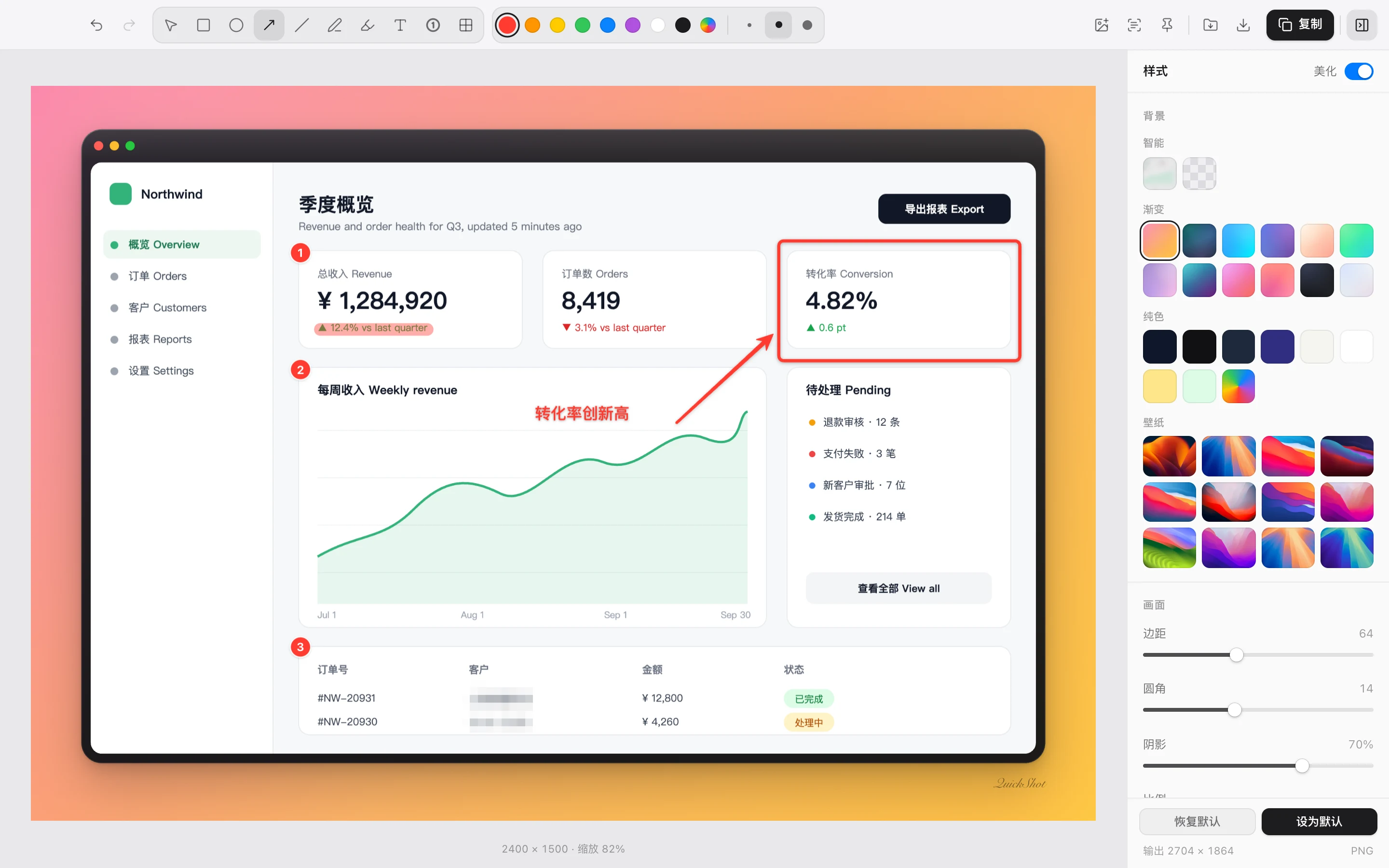
箭头、方框、序号、文字、荧光笔、打码……每个标注都能再次选中、移动、改色,撤销与重做不限次数。Arrows, boxes, numbered steps, text, highlighter, blur. Every mark stays editable: select it again to move, resize or recolour it, with unlimited undo.
选择SelectV
矩形RectangleR
椭圆EllipseO
箭头ArrowA
直线LineL
画笔PenP
荧光笔HighlighterH
文字TextT
序号StepN
打码BlurM
按住 Shift 画正方形、正圆和 45° 线Hold Shift for squares, circles and 45° lines
文字支持底色与描边,兼容中文输入法Text with a fill or outline, IME friendly
打码可选像素化或模糊Pixelate or blur anything sensitive
按像素密度换算,Retina 屏与普通屏一致Scaled to pixel density, so Retina and standard screens match
美化Beautify
一键变成 可以发布的成品图。From capture to cover image.
渐变、纯色或截图自身的模糊背景,窗口样式、圆角与多层柔和阴影,再署上你的名字。调好后点“设为默认”,下次截图自动沿用。Gradients, solid colours or a blur of the shot itself, window frames, rounded corners, layered soft shadows and your signature. Set it as the default and every next capture starts looking like this.
QuickShot
美化Beautify
背景Background
窗口Frame
比例Aspect
署名Signature
署上你的名字, 定下你的风格。Sign it. Make it yours.
中英文署名Any signature 手写、衬线、几何、等宽等字体,粗细、字号、颜色与不透明度随心调整,中英文混排也协调。Script, serif, geometric or mono, in any weight, size, colour and opacity, with Chinese and Latin text in matching faces.
放在边距或截图内In the margin or on the image 署名可以安静地待在背景边距,也可以压在截图上。Keep it quietly in the background margin, or set it over the capture.
设为默认,一键恢复Set as default, reset anytime 调好的背景、窗口与署名点“设为默认”,之后的截图都用这套样式;临时改动随时恢复。Save your background, frame and signature as the default for every new capture, and undo a passing experiment in one click.
拼接Stitch
多张截图, 拼成一张。Many shots. One image.
在编辑器里按 A 再截一张,或者直接粘贴、拖入图片。顺序、间距和对齐随手调整,标注会跟着所在的那张一起移动。In the editor, press A to capture another, or paste and drop images in. Reorder, space and align them freely, and each annotation moves with its own piece.
纵向Vertical
横向Horizontal
网格Grid
美化、导出、贴图与文字提取都作用于拼好的整张图,每一步都能撤销。Beautify, export, pin and text extraction all work on the stitched result, and every step can be undone.
细节Details
处处用心。Thoughtful, everywhere.
贴到桌面, 随手提取文字。Pin it. Read it.
把截图置顶悬浮在桌面上对照着看,可调透明度、开启鼠标穿透;一键识别图中的文字,复制即可粘贴。macOS 使用 Apple Vision,Windows 使用系统自带 OCR,全部在本机完成。Float a capture above everything for reference, with adjustable opacity and click-through. Pull the text out of any shot in one click. Apple Vision on macOS and the built-in OCR on Windows, all on your machine.
P贴到桌面PinT提取文字Extract text
缩放、平移与裁剪Zoom, pan and crop
滚轮缩放查看细节,按住空格拖动画布。按 C 裁剪,拖动边角调整选区,支持撤销和重做。查看比例不影响导出尺寸。Scroll to zoom into details and hold Space to pan. Press C to crop, adjust the edges and corners, then undo or redo as needed. Zoom keeps the export size intact.
滚动长截图Scrolling capture
框选后滚动页面,自动拼成一张长图,最长 30,000 像素。需要 macOS 14 及以上。Select an area and scroll. QuickShot stitches it into one long image, up to 30,000 pixels. macOS 14 or later.
智能打码Smart Redact
按 M 自动遮住用户名、主机名、邮箱、IP 和密钥,发终端截图不用再一处处手动糊。Press M to cover user and host names, emails, IPs and keys, so terminal screenshots need no hand blurring.
快捷键随心改Shortcuts your way
截图、滚动截图和编辑器里的每个快捷键,都能在设置里改成顺手的组合。Change any shortcut in Settings, from capturing and scrolling capture to every editor tool.
各平台比例Ratios for every feed
1:1、4:3、16:9、3:4、9:16 一键切换,截图居中排好,发到哪里都合适。Switch between 1:1, 4:3, 16:9, 3:4 and 9:16 in one click, with the shot centred for any feed.
透明背景Transparent background
选择透明背景导出 PNG,窗口圆角外干干净净,直接放进设计稿或文档。Export a PNG with a transparent background and clean rounded corners, ready for slides and design files.
高清不失真Pixel-sharp
按截图的像素密度导出,Retina 屏上的截图依旧锐利,标注粗细在不同屏幕上保持一致。Exports at the capture's own pixel density, so Retina shots stay crisp and marks look the same on every screen.
粘贴、拖入都能拼Paste or drop to stitch
把剪贴板或访达里的图片粘贴、拖进编辑器,它就会拼进当前截图。Paste an image or drop one from Finder into the editor, and it joins the current stitch.
V
无限撤销Unlimited undo
标注、样式、拼接,每一步都能撤销与重做,放心尝试。Annotations, styles and stitching all go through undo and redo, so experiment freely.
Z
菜单栏常驻Lives in the menu bar
不占程序坞。切换选区方式、界面语言与登录时启动;还可关闭左键点击立即截图,方便搭配 Bartender、Ice 使用。Out of your Dock. Switch selection mode, language and launch at login. Turn off left-click capture when using menu-bar managers such as Bartender or Ice.
深色与浅色Light and dark
界面跟随系统外观自动切换,夜里截图也不刺眼。The interface follows your system appearance, easy on the eyes at night.
中文与英文Chinese and English
完整的双语界面,菜单栏里随时切换。A fully bilingual interface you can switch from the menu bar.
复制、保存、另存Copy, save, save as
选区快速复制可直接带上已保存的背景、边框和水印,在设置中关闭即可复制原图。编辑器里可复制成品图、保存到“下载”或另存为。Quick selection copies can include your saved background, frame and watermark; turn this off for the bare capture. In the editor, copy the result, save to Downloads or choose Save As.
隐私Privacy
你的截图, 只属于你。Your screenshots stay yours.
截图常常包含聊天、账单和工作资料。QuickShot 从设计上就只在本机处理它们。Screenshots often hold chats, invoices and work in progress. QuickShot is built to handle them only on your machine.
本机处理On device
截图、标注、美化和文字提取都在你的电脑上完成。Capture, annotation, styling and OCR all run locally.
只有匿名计数Only an anonymous count
每次启动只发送一次匿名统计(随机 ID、版本、系统),不含任何截图内容。One anonymous ping per launch (a random ID, version and OS), never your content.
无账号、无云端No account, no cloud
下载即用,截图、文字和文件名从不离开你的电脑。Download and go. Screenshots, text and file names never leave your computer.
源代码公开Open source
每一行代码都可以在 GitHub 上查看和验证。Every line can be read and checked on GitHub.
渲染进程开启上下文隔离并禁用 Node.js,只通过白名单 IPC 与主进程通信。这个页面同样没有统计代码和第三方字体。Renderers run with context isolation and Node.js disabled, talking to the main process only through an allow-listed IPC. This page has no analytics or third-party fonts either.
快捷键Shortcuts
双手不离键盘。Keep your hands on the keys.
任意位置Anywhere
截图Take a screenshotX
恢复鼠标穿透的贴图Restore click-through pinsL
选区Selection
截取窗口 / 全屏Window / full screen单击Click
截取区域Area拖动Drag
取消CancelEsc
编辑器Editor
撤销 / 重做Undo / redoZ/Z
复制成品图Copy imageC
复制并关闭Copy and close
保存到“下载”Save to DownloadsS
另存为Save asS
贴到桌面Pin to desktopP
提取文字Extract textT
编辑器Editor
再截一张拼接Capture another to stitchA
拼接剪贴板里的图片Stitch from clipboardV
复制一份标注Duplicate annotationD
变细 / 变粗Thinner / thicker[]
样式面板Style panel.
取消选中 / 关闭Deselect / closeEsc
现在就开始 优雅地截图。Start capturing beautifully.
免费下载,源代码公开。一个快捷键,从此告别凌乱的截图。Free to download, open to read. One shortcut, and messy screenshots are behind you.
版本 1.3.6 · macOS 12 及以上 · Windows 10 / 11(64 位)· 全部版本Version 1.3.6 · macOS 12 or later · Windows 10 / 11 (64-bit) · All releases
三步装好,一分钟上手。Three steps, one minute.
1
拖进“应用程序”Drag to Applications
打开 DMG,把 QuickShot 拖到“应用程序”文件夹。Open the DMG and drag QuickShot onto the Applications folder.
2
首次打开被拦截?Blocked on first launch?
QuickShot 暂未经过 Apple 公证,macOS 可能提示“无法验证开发者”。在“终端”运行下面这行后重新打开即可,只需一次:QuickShot is not notarised by Apple yet, so macOS may say it cannot verify the developer. Run this once in Terminal, then open it again:
也可以在“系统设置 → 隐私与安全性”底部点“仍要打开”。Or choose “Open Anyway” at the bottom of System Settings → Privacy & Security.
3
跟着指引授权Follow the guide
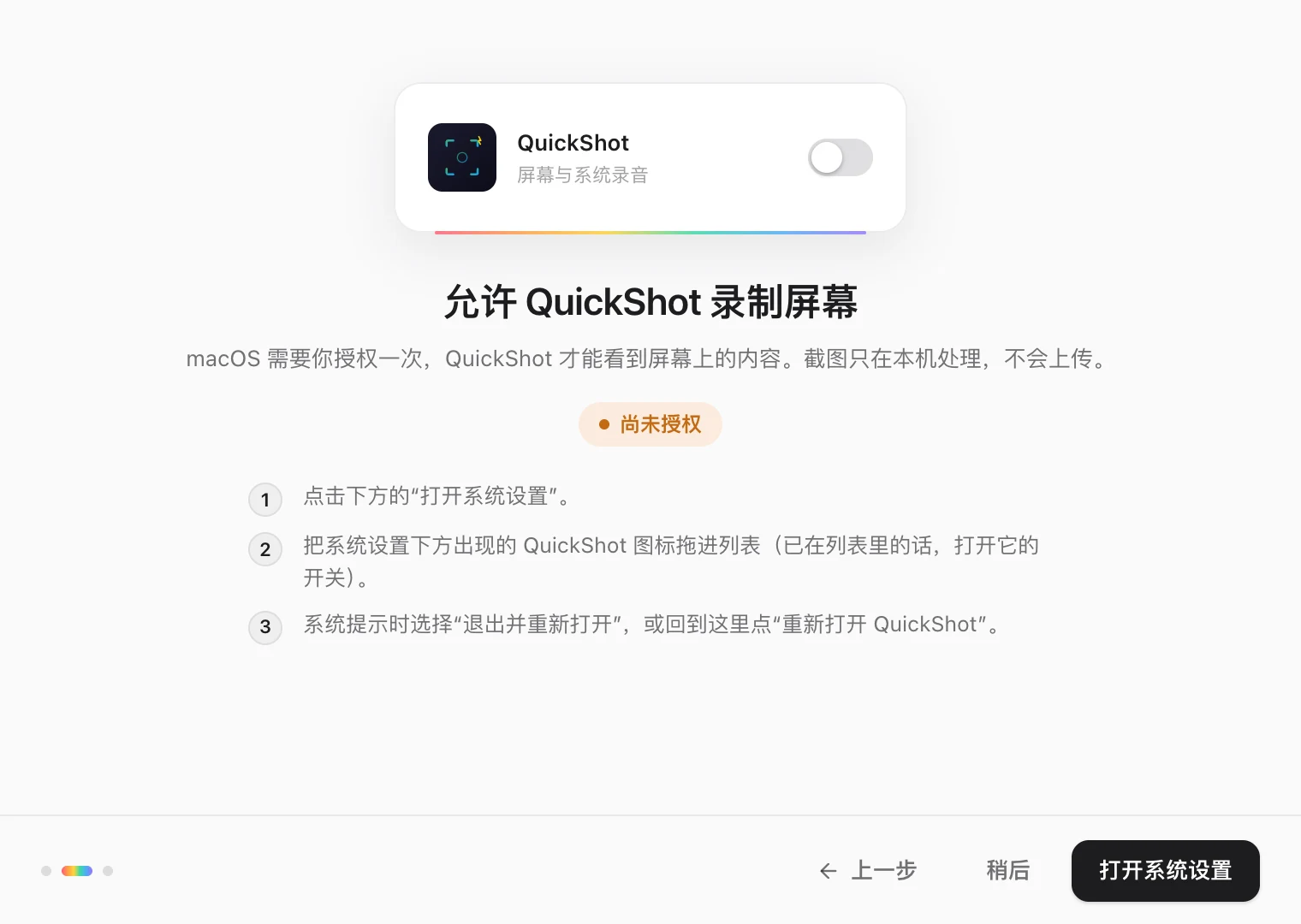
欢迎指引会展示快捷键,并带你允许“屏幕录制”:把系统设置下方出现的 QuickShot 图标拖进列表,就完成了。The welcome guide shows the shortcut and walks you through Screen Recording: drag the QuickShot icon that appears under System Settings into the list, and you are done.
Windows:运行安装程序即可;如果出现 SmartScreen 提示,点“更多信息 → 仍要运行”。Windows: run the installer. If SmartScreen appears, choose “More info → Run anyway”.
常见问题FAQ
还有疑问?Questions?
QuickShot 免费吗?Is QuickShot free?
免费。源代码以 GPL-3.0 许可证公开在 GitHub,欢迎提交 Issue 和 Pull Request。Yes. The source code is on GitHub under the GPL-3.0 license, and issues and pull requests are welcome.
截图会上传到云端吗?Are my screenshots uploaded anywhere?
不会。截图、标注、美化和文字提取都在本机完成,也没有账号。QuickShot 只在每次启动时发送一次匿名统计(随机安装 ID、版本、系统和架构),用来了解有多少人在使用。No. Capturing, annotating, styling and text extraction all happen on your computer, and there is no account. QuickShot only sends one anonymous report per launch (a random installation ID, version, OS and CPU type) to count how many people use it.
为什么提示“无法验证开发者”?Why does macOS say it cannot verify the developer?
QuickShot 目前没有 Apple 开发者签名与公证,macOS 会拦截首次打开。在“终端”运行 sudo xattr -rd com.apple.quarantine /Applications/QuickShot.app,或在“系统设置 → 隐私与安全性”底部点“仍要打开”,之后就不会再出现。QuickShot is not yet signed and notarised with an Apple developer ID, so macOS blocks the first launch. Run sudo xattr -rd com.apple.quarantine /Applications/QuickShot.app in Terminal, or choose “Open Anyway” in System Settings → Privacy & Security. You only need to do this once.
需要哪些权限?Which permissions does it need?
macOS 上只需要“屏幕录制”,用来看到屏幕上的内容。首次启动的指引会一步步带你完成:把 QuickShot 图标拖进系统设置的列表即可。Windows 不需要额外权限。On macOS, only Screen Recording, so it can see what is on screen. The first-launch guide walks you through it: drag the QuickShot icon into the list in System Settings. Windows needs no extra permission.
打开后在哪里找到它?Where is it after I open it?
QuickShot 常驻菜单栏(Windows 在通知区域)。按快捷键即可截图;点菜单栏图标可以切换选区方式、界面语言、登录时启动,或重新打开使用指南。QuickShot lives in the menu bar (the notification area on Windows). Press the shortcut to capture, or click the icon to switch selection mode or language, launch at login, or reopen the guide.
支持哪些系统?Which systems are supported?
macOS 12 及以上,Apple 芯片与 Intel 各有安装包;Windows 10 与 11(64 位)。Windows 上的文字提取使用系统设置中已安装的 OCR 语言。macOS 12 or later, with separate builds for Apple silicon and Intel, and Windows 10 and 11 (64-bit). Text extraction on Windows uses the OCR languages installed in Windows Settings.